
Search for a Member
This screen is often used when a customer has contacted a CSR to check on something, or to change something in their Member Profile. You can use this screen to search for the Member and bring up their information for review. If the Member Profile doesn’t exist, you can create a new Profile for them (see
The search feature on the People screen allows you to search for a specified text string anywhere within several commonly-used Member fields, including email address, name, and Member ID. You can also filter the People screen to show only the Members who were created within a specified date range.
To search for a Member:
Select Members from the top navigation bar, then select CSR > People from the side navigation menu. The People screen is displayed.
Optionally, in the Search field, enter the desired text string.
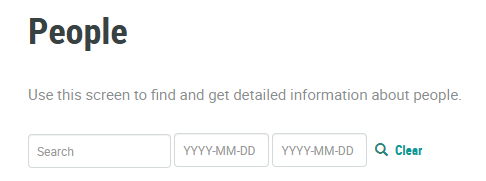
Optionally, using the two date fields, define a date range by entering a start date and an end date. The platform will filter the search results to show only Members who were created within this date range.
Click the Search icon. The screen is refreshed to show only the Members that meet your search criteria. If you entered multiple search criteria, the Member must meet ALL criteria.
Optionally, to remove all search criteria and revert to the default criteria, click the Clear icon.
Once you have found the desired Member, click their record to view and manage their Member Profile. See
